
Download Perfect Backup – Kostenloses, sicheres Windows-Backup-Tool für Zuhause & Unternehmen
Übersicht – Warum Perfect Backup aus der Menge herausragt
In einer Welt, in der Datenverlust ein Unternehmen lahmlegen oder wertvolle persönliche Erinnerungen auslöschen kann, ist eine zuverlässige Backup‑Lösung nicht mehr optional – sie ist unverzichtbar. Perfect Backup beantwortet diesen Bedarf mit einer kostenlosen und dennoch funktionsreichen Windows‑Anwendung, die zum Schutz von Dateien, Ordnern und kompletten System‑Images entwickelt wurde. Im Gegensatz zu vielen kostenpflichtigen Tools, die Kernfunktionen hinter einem Abonnement verstecken, bietet Perfect Backup eine komplette Palette von Backup‑Typen – einschließlich Voll‑, Inkremental‑, Differenz‑ und Echtzeit‑Synchronisation – ohne nach einer Kreditkartennummer zu fragen.
Die intuitive, wizard‑gesteuerte Benutzeroberfläche senkt die Lernkurve für Einsteiger, während Power‑User dennoch eine feine Kontrolle über Quellfilter, Kompressionsstufen und Verschlüsselungseinstellungen erhalten. Die integrierte ZIP‑Kompression reduziert den benötigten Speicherplatz auf externen Laufwerken oder Cloud‑Buckets und führt so zu greifbaren Kosteneinsparungen im Laufe der Zeit. Darüber hinaus verwendet die Verschlüsselungs‑Engine den AES‑256‑Standard, der sicherstellt, dass sensible Dokumente, Finanzunterlagen oder proprietärer Code für unbefugte Augen unlesbar bleiben.
Ob Sie ein Freelancer sind, der Kundenlieferungen schützt, ein kleines Büro, das nächtliche geplante Backups benötigt, oder ein Heimanwender, der Fotos mühelos auf ein NAS spiegeln möchte – Perfect Backup liefert ein sicheres, automatisiertes und hoch konfigurierbares Erlebnis. Das Programm glänzt zudem mit einem robusten Reporting‑System – komplett mit E‑Mail‑Benachrichtigungen, die es Ihnen ermöglichen, den Backup‑Zustand zu überwachen, ohne die Anwendung zu öffnen. Kurz gesagt, Perfect Backup verbindet Einfachheit mit Tiefe und bietet Windows‑Nutzern einen vertrauenswürdigen Wächter für ihre digitalen Assets.
Kernfunktionen & Fähigkeiten
Funktionsliste
- Mehrere Backup‑Ziele: externe USB‑Laufwerke, Netzwerkfreigaben, FTP‑Server und große Cloud‑Anbieter.
- Kompression im ZIP‑Format zur Speicherplatzeinsparung und Reduzierung der Übertragungszeit.
- AES‑256‑Verschlüsselung für sicheren Datenschutz während Speicherung und Übertragung.
- Unterstützung für Voll‑, Inkremental‑, Differenz‑ und Echtzeit‑Synchronisations‑Backup‑Typen.
- Erweiterte Quellfilter zum Ein‑/Ausschließen von Dateien nach Größe, Datum, Erweiterung oder Attribut.
- Eingebauter Aufgabenplaner für automatisierte tägliche, wöchentliche oder monatliche Backup‑Jobs.
- Umfassendes Reporting‑Dashboard mit Protokollen, Erfolgs‑/Fehlschlag‑Statistiken und E‑Mail‑Benachrichtigungen.
- Ein‑Klick‑Wiederherstellungs‑Wizard für schnelle Wiederherstellung einzelner Dateien oder kompletter Backup‑Sätze.
- Mehrsprachige Benutzeroberfläche (Englisch, Spanisch, Deutsch, Französisch und mehr).
- Kostenlose Updates mit Sicherheitspatches und neuen Funktions‑Rollouts.
Vorteile
- Vollständig kostenlos für private und kommerzielle Nutzung.
- Reiches Set an Backup‑Typen ohne versteckte Gebühren.
- Intuitiver Wizard ermöglicht schnelle Einrichtung für nicht‑technische Nutzer.
- Starke AES‑256‑Verschlüsselung schützt sensible Daten.
- ZIP‑Kompression senkt Speicherkosten.
- Flexibles Scheduling und umfangreiche Quell‑Filter‑Optionen.
- Detaillierte Protokolle und E‑Mail‑Alarme halten Administratoren informiert.
Nachteile
- Kein nativer macOS‑ oder Linux‑Client – nur Windows.
- Cloud‑Integration beruht auf Drittanbieter‑Diensten; kein integrierter Cloud‑Speicher.
- Benutzeroberfläche wirkt, obwohl funktional, im Vergleich zu modernen SaaS‑Tools veraltet.
- Begrenzte Unterstützung paralleler Threads kann große Batch‑Backups auf langsamerer Hardware verlangsamen.
Kompatibilität
Perfect Backup ist ausschließlich für die Windows‑Plattform entwickelt und unterstützt Windows 7, Windows 8/8.1, Windows 10 und Windows 11 (sowohl 32‑Bit‑ als auch 64‑Bit‑Editionen). Der Installer erkennt automatisch die passende Architektur und passt die Systemanforderungen entsprechend an. Während die Software nicht nativ unter macOS, Linux, Android oder iOS läuft, kann sie dennoch Daten zu Netzwerkfreigaben oder FTP‑Servern sichern, die von diesen Betriebssystemen aus erreichbar sind, wodurch sie ein brauchbarer Baustein in gemischten Backup‑Strategien ist.
Installation, Konfiguration & tägliche Nutzung
Schritt‑für‑Schritt‑Installationsanleitung
1. Download the installer from the official Perfect Backup website. The file is a small .exe (approximately 25 MB) that verifies its digital signature before execution.
2.
Run the installer with administrator privileges. The wizard will prompt you to accept the license agreement, choose an installation folder (default is C:\Program Files\PerfectBackup), and decide whether to create a desktop shortcut.
3. Complete the setup by clicking “Install.” The process typically finishes within a minute on modern hardware.
4.
Launch the application and allow it to register the required Windows services for scheduled tasks and email notifications.
Erstellung Ihres ersten Backup‑Jobs
Upon first launch, Perfect Backup greets you with a “Create New Backup” wizard. Follow these steps:
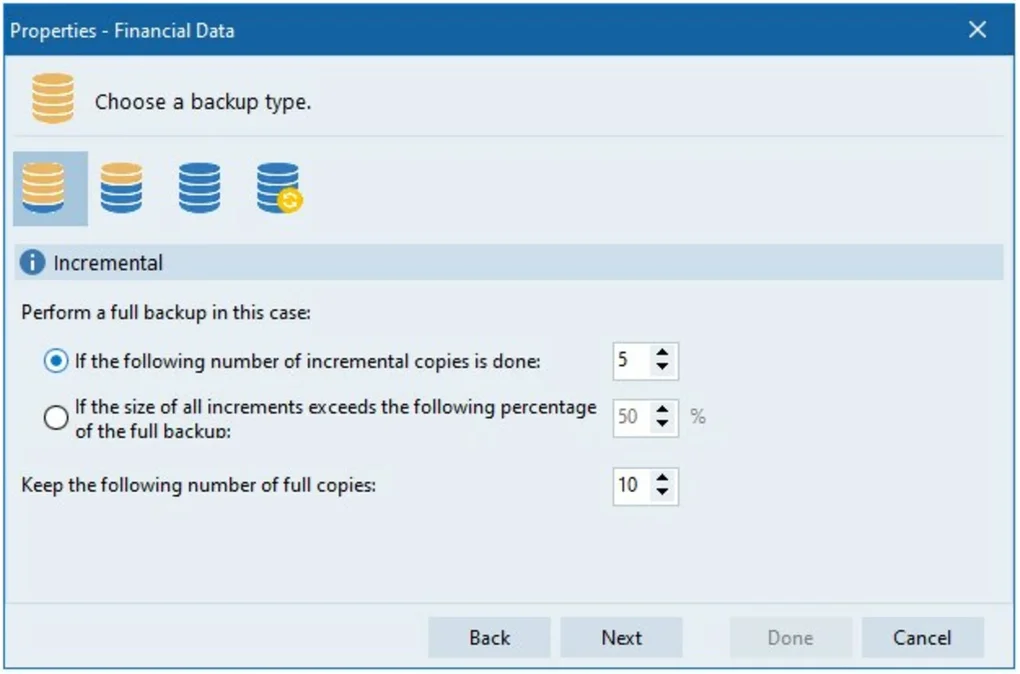
- Select Backup Type: Choose between Full, Incremental, Differential, or Sync. For most users, starting with a Full backup establishes a baseline, after which Incremental backups keep the repository lean.
- Define Source: Browse to the folders you want to protect—documents, pictures, databases, or entire drives.
Use the “Add Filter” button to exclude temporary files, cache folders, or any other data you deem unnecessary.
- Choose Destination: Pick a local external drive, a network share (e.g.,
\\NAS\Backups), an FTP server, or a mapped cloud folder. The wizard offers a preview of available storage space. - Configure Compression & Encryption: Enable ZIP compression and set the desired compression level (Fast, Normal, or Maximum). Turn on “Encrypt Backup” and provide a strong password; the software will generate a 256‑bit key automatically.
- Schedule & Notifications: Set the job to run daily at 02:00 AM, weekly on Sundays, or manually.
Enable email alerts by entering your SMTP server details; you’ll receive a concise success/failure report after each run.
Tägliche Wiederherstellung
Restoring data is equally straightforward. Open the “Restore” tab, select the backup set (identified by date and description), and choose either “Full Restore” to rebuild the entire source or “Selective Restore” to pick individual files. The built‑in preview lets you browse the compressed archive without extracting everything first. After confirming the destination (original location or a new folder), click “Restore.” The software validates the encryption password, decompresses the files, and restores them with original timestamps and attributes intact. In case of a corrupted archive, Perfect Backup’s integrity check will highlight problematic files, allowing you to re‑run the backup job or retrieve a clean copy from another destination.
Häufig gestellte Fragen (FAQ)
Is Perfect Backup really free for commercial use?
Yes. Perfect Backup’s licensing model allows both personal and commercial use at no cost. All core features—including encryption, compression, and scheduling—are available without a paid upgrade.
Can I back up to popular cloud services like Google Drive or OneDrive?
Perfect Backup does not contain built‑in cloud connectors, but you can map a cloud storage folder as a local drive (using tools such as Rclone or the native OneDrive sync client) and then select that mapped drive as a backup destination.
How secure is the encryption offered by Perfect Backup?
The software uses AES‑256 encryption, which is considered military‑grade. The encryption key is derived from the password you set, and the password is never stored in plain text. This ensures that only users with the correct password can decrypt the backup archive.
What happens if a scheduled backup fails?
When a job fails, Perfect Backup logs the error details, sends an email notification (if configured), and automatically retries the job based on the retry settings you define. You can also view the failure reason in the “Report” tab and manually restart the job after fixing the issue.
Is there a way to test the backup integrity before restoring?
Yes. Perfect Backup includes an “Integrity Check” option that scans the selected backup set, verifies checksums, and reports any corrupted files. Running this check periodically helps ensure your data can be restored when needed.
Fazit & Handlungsaufruf
Perfect Backup delivers a compelling mix of affordability, security, and flexibility that is rare in the Windows backup market. Its comprehensive feature list—ranging from multi‑destination support and powerful compression to AES‑256 encryption and granular scheduling—covers the needs of both home users and small‑to‑medium enterprises. While the lack of native macOS or Linux clients might be a drawback for heterogeneous environments, the ability to back up to network shares or FTP servers mitigates that limitation for many cross‑platform setups. The user‑friendly wizard lowers the barrier to entry, and the detailed reporting system keeps administrators informed without demanding constant manual checks. In an era where data breaches and accidental deletions are increasingly common, having a free, reliable, and secure backup solution like Perfect Backup is a strategic advantage.
Ready to safeguard your files without spending a dime? Download Perfect Backup now, configure your first backup job in minutes, and enjoy peace of mind knowing your data is protected by industry‑standard encryption and resilient storage options. Keep your system updated to benefit from regular security patches, and explore the built‑in FAQ for quick answers to common questions. Your data deserves the best defense—make Perfect Backup your first line of protection today.
Pros: Free for commercial use, robust encryption, ZIP compression, extensive scheduling, detailed reports.
Cons: Windows‑only, no native cloud integration, dated UI.







